
OOF2: The Manual
| 6.2.155. OOF.Skeleton.PinNodes | ||
|---|---|---|

|
6.2. Menus |  |
Nodes that are pinned will not move during
Skeleton modification
operations. Pinning Nodes is one way of restricting the scope
of future Skeleton modifications.
For example, some Nodes may be already positioned on a material
boundary, but the shapes of the Elements in the interior of the
material may need to be improved. Figure 6.55 shows the results of smoothing a Skeleton with
and without pinned nodes.
Figure 6.55. Pinning Skeleton Nodes
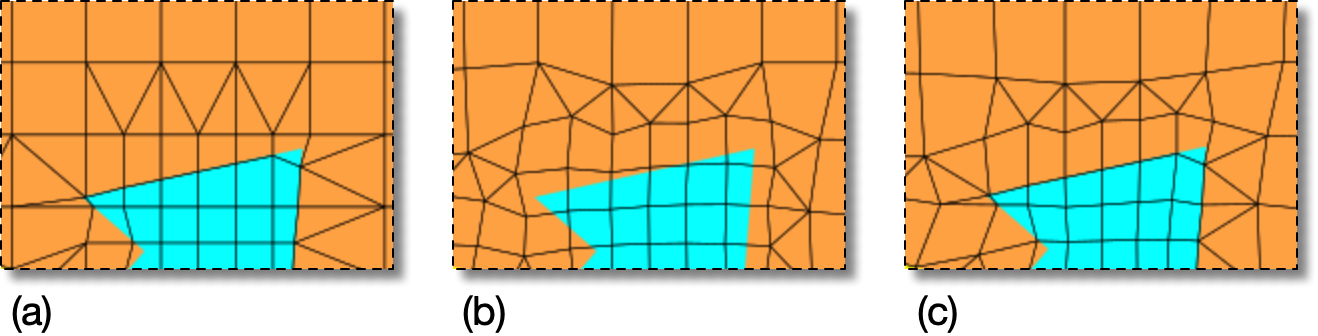
(a) A portion of a Skeleton that has been partially adapted to
the underlying Microstructure. Some Nodes lie on the pixel
boundaries.
(b) The same Skeleton after smoothing it for 5
iterations with alpha=0.3. The Nodes have
moved off of the boundary, decreasing the Skeleton's homogeneity.
(c) The same Skeleton, smoothed in the same way, except that the
boundary Nodes were pinned before smoothing. The Skeleton is
smoother away from the boundary, but the homogeneity
has been preserved.
In a graphics window, pinned Nodes are marked with yellow dots.
The size and color of the dots may be changed by editing the
window's PinnedNodesDisplay.
![[Note]](IMAGES/note.png) |
Note |
|---|---|
|
Whether or not a |
Parent Menu: OOF.Skeleton
OOF.Skeleton.PinNodes Commands
- OOF.Skeleton.PinNodes.Invert — Pin the unpinned and unpin the pinned.
- OOF.Skeleton.PinNodes.Pin_Internal_Boundary_Nodes — Pin all internal boundary nodes.
- OOF.Skeleton.PinNodes.Pin_Node_Selection — Pin selected nodes.
- OOF.Skeleton.PinNodes.Pin_Selected_Elements — Pin nodes of selected elements.
- OOF.Skeleton.PinNodes.Pin_Selected_Segments — Pin nodes of selected segments.
- OOF.Skeleton.PinNodes.Redo — Undo the undone pinning operation.
- OOF.Skeleton.PinNodes.UnPin_Node_Selection — Unpin selected nodes.
- OOF.Skeleton.PinNodes.Undo — Undo the pinning operation.
- OOF.Skeleton.PinNodes.UnpinAll — Unpin all nodes of the Skeleton.
|
|
 |
|
| OOF.Skeleton.Boundary.Rename |  |
OOF.Skeleton.PinNodes.Invert |