
OOF2: The Manual
| 2.4. Skeletons | ||
|---|---|---|

|
Chapter 2. OOF2 Concepts |  |
In OOF2, before creating a finite element mesh, you must first
create a Skeleton. The Skeleton defines only the
geometry of the mesh. It does not include
any information about Equations, Fields or finite element
shape functions. All of that information is in the Mesh
class, which will be discussed later.
The Skeleton is an intermediate step between the pixelized Microstructure
and the finite element solution. It represents the finite
element discretization of the Microstructure. One Microstructure may contain
many Skeletons, representing different discretizations. One
Skeleton, in turn, may generate many Meshes, allowing different
physics or different solution methods to be tried in a single
geometry.
The Skeleton Task
Page contains tools for creating and modifying Skeletons.
The Skeleton
Info toolbox contains tools for examining the details of
a Skeleton in the graphics window.
When a Skeleton is constructed, it can be declared to be
periodic in the x or y directions, or neither, or both. If it
is periodic, then any modifications performed on one edge will
also apply to the opposite edge, Every Node or Segment on a
periodic edge will have a matching partner on the opposite
edge. All skeleton modifications will maintain the
periodicity of the skeleton.
Periodic
boundary
conditions can only be applied to Meshes derived from
periodic Skeletons. However, non-periodic boundary conditions
can be applied to either periodic or non-periodic Skeletons.
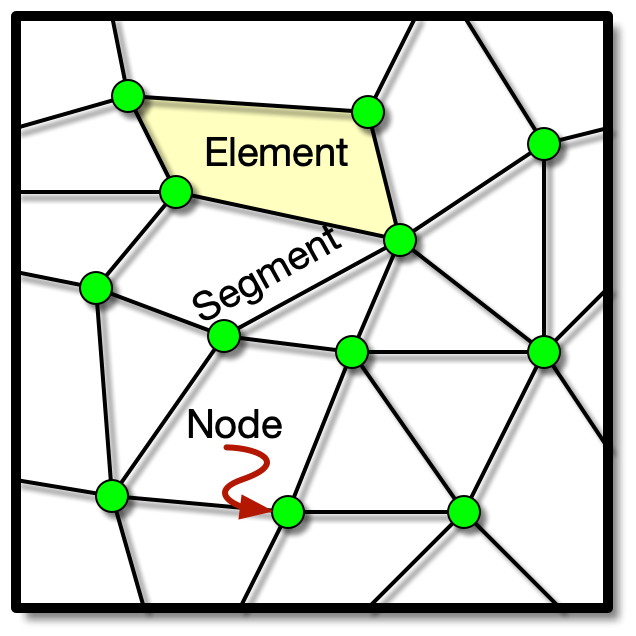
Skeletons are composed of triangular and quadrilateral
elements, as shown in Figure 2.3. These are non-overlapping
polygons that completely cover the Microstructure. Skeleton elements
will be converted directly into Mesh
Elements when a Mesh is created.
Many Skeleton operations operate on the set of currently
selected elements. Elements may be selected by the Skeleton
Selection Task Page and the Skeleton
Selection toolbox.
Skeleton elements inherit their Material Properties from
the pixels beneath them in the Microstructure.
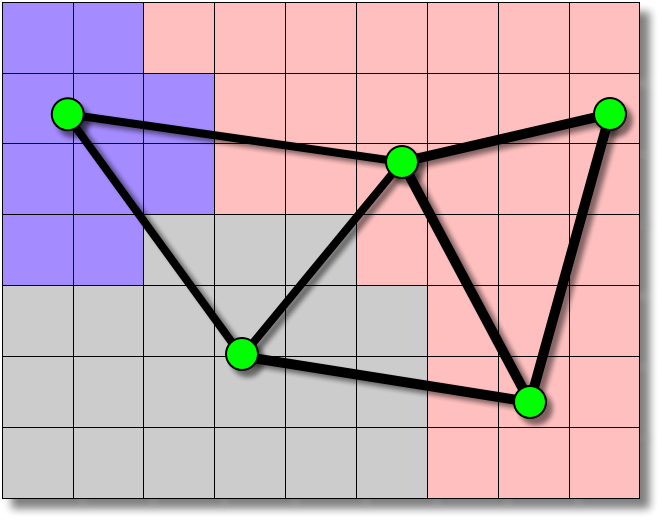
If the Skeleton geometry is to be a good approximation of the
Microstructure geometry, then all of the pixels lying beneath an
element should have the same assigned Material. The
homogeneity of a Skeleton element is a
measure of how well the element achieves this goal. (See
Figure 2.4.)
The homogeneity is computed by finding the area of the
element that overlies each category of
pixel. Pixels
that have different assigned Materials or belong to
different “meshable”
PixelGroups are in different categories. The
category claiming the largest area of the element is the
dominant category, and the pixels in
that category are the dominant pixels.
The homogeneity is defined as the ratio of the area of the
dominant category to the area of the element as a whole. A
completely homogeneous element has a homogeneity of 1.0. An
element made up of N equal components has a homogeneity of
1/N. The Material assigned to an element is the
Material of its dominant pixel category.[2]
The homogeneity index, which can be
found in the Skeleton Status pane in
the Skeleton
Page, is the area weighted average
homogeneity of all of the Elements in a Skeleton. In other
words, it is the fraction of the Skeleton's area in which the
Elements dominant category matches the underlying pixel
category. If Skeleton that perfectly matches the Microstructure its
homogeneity index is 1.0.
![[Note]](IMAGES/note.png) |
Note |
|---|---|
|
The color of the pixels in an |
Figure 2.4. Skeleton Element Homogeneity
Many of the tools for modifying Skeletons, such as Anneal
and Smooth,
work by reducing an effective energy
functional,
,
of the mesh. This functional assigns
a number between 0 and 1 to each element. It is called an
energy because of its role in the Annealing
operation, where it plays the role of the energy in a
statistical mechanical simulated annealing process.
The energy functional has two contributions, a homogeneity energy, and a shape energy, . Their relative importance is controlled by a parameter α:
When then Skeleton modifications that use
will not consider the shape of
elements at all, and will result in homogeneous but badly
shaped elements. When , modifications will not
consider homogeneity, and will result in well shaped but
possibly inhomogeneous elements. When ,
there will be a trade-off between shape and homogeneity.
The homogeneity energy is simply one minus the homogeneity, so that it is minimized when an element is completely homogeneous.
Finite elements are usually better behaved (the resulting matrix equations are easier to solve) if the elements do not have sharp angles or high aspect ratios. The shape energy function returns 0 for equilateral triangular or square quadrilateral elements, and 1 for elements that are degenerate (ie, have an aspect ratio of 0 or three collinear vertices).
The explicit expression for triangular elements is
where is the area of the element and is the sum of the squares of the lengths of its sides.
For quadrilateral elements the shape energy is found by first computing a “quality factor”, , for each corner . is the area of the parallelogram defined by the two sides of the element that converge at node , divided by the sum of the squares of the sides, and normalized so that its value is 1 for a square. It's value is always less than 1 at a corner where the two converging edges have different lengths or meet at an acute or obtuse angle, and is zero in the degenerate cases when the edges are colinear or when the length of one edge is 0. The shape energy is defined to be
where is the minimum (worst) in the element, is the at the opposite corner, and is a small number. (The term is required to prevent pathologies that occur when the shape energy has no dependence on the position of one of the nodes. is set to 10-5 in the program, but its exact value is inconsequential.)
The nodes at the corners of an element are ordered. The perimeter of the element is traversed counterclockwise when moving from one node to the next. Any operation that breaks this ordering makes the element illegal. Elements with three collinear nodes are also illegal, as are non-convex quadrilaterals. (Such elements introduce singularities and instabilities in the finite element stiffness matrix.) Figure 2.5 illustrates how node motion may create illegal elements.
Most Skeleton tools will refuse to create illegal
elements. The one exception is the Move Node
toolbox, which allows the user to move nodes by hand.
Sometimes it may be necessary to temporarily make an illegal
element while manually moving a bunch of nodes.
Figure 2.5. Creating Illegal Elements
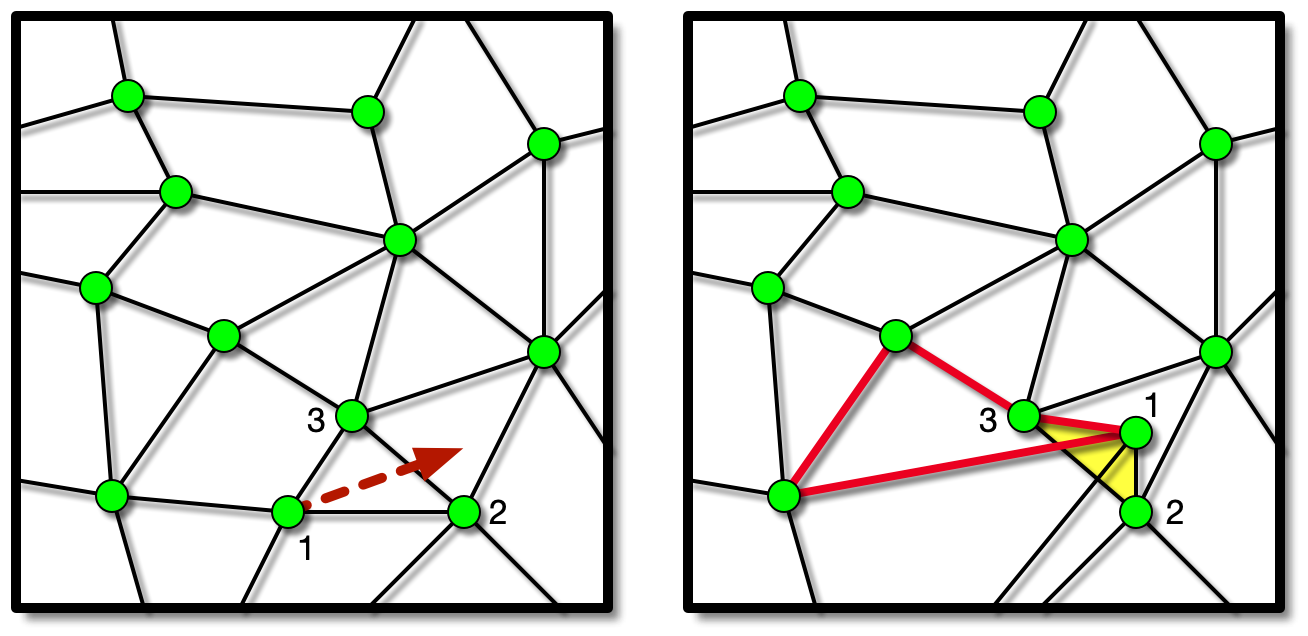
Moving the node in the left hand figure results in two illegal elements in the right hand figure. The shaded triangle is illegal because its nodes (numbered 1,2,3) are out of order. The highlighted quadrilateral is illegal because it is not convex.
The nodes of a Skeleton element are the
corners of the element, as shown in Figure 2.3. Unlike real finite
elements, Skeleton elements may not have nodes along
their edges or in their interiors.
Many Skeleton operations operate on the set of currently
selected nodes. Nodes may be selected by the Skeleton Selection
Task Page and the Skeleton
Selection toolbox.
Node Mobility.
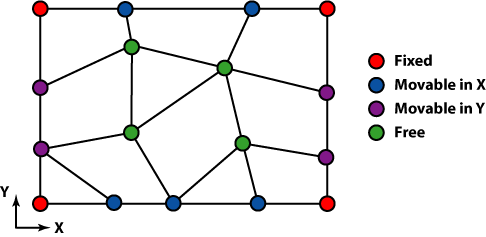
Nodes may be moved when a Skeleton is modified.
Different nodes have different degrees of mobility. The
Nodes at the four corners of a Microstructure can never move. The
Nodes along the edges of a Microstructure can move along the edge,
but cannot move into the interior. All the interior Nodes
can move freely (see Figure 2.6).
In addition, any Node may be explicitly pinned
to prevent it from moving at all.
The segments of a Skeleton are the edges of
the elements, i.e, the lines
joining the nodes. (See Figure 2.3.)
Many Skeleton operations operate on the set of currently
selected segments. Segments may be selected by the Skeleton Selection
Task Page and the Skeleton
Selection toolbox.
Homogeneity can be computed on Segments just as it can on
Elements. Analogous to the definition of Element homogeneity,
the homogeneity of a Segment is defined as the fraction of
the length of the segment that lies above that Segment's
dominant pixel type. See Figure 2.7 for a graphical
representation.
Figure 2.7. Homogeneity of a Segment
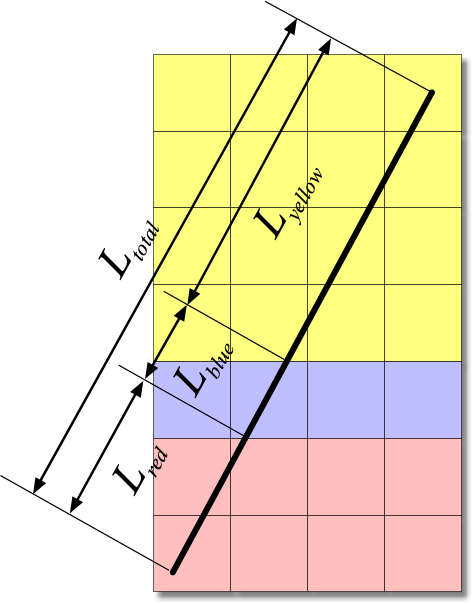
Yellow is the dominant pixel color along the segment (the heavy black line). The homogeneity of the Segment is the fractional length covered by the yellow pixels, Lyellow/Ltotal.
Actually, Segment homogeneity is quite a bit tricker to define
than Element homogeneity. The previous discussion skipped over
two subtleties which are illustrated in Figure 2.8. The first difficulty,
illustrated by the vertical segment marked "A", is that the
homogeneity of a segment that is part of two Elements can
depend on which element is being considered. From the point
of view of the left hand element, segment A is about 60% blue
and 40% yellow, with the transition from blue to yellow marked
by the red circle. From the point of view of the right hand
element, it's about 80% yellow and 20% red, with the
transition at the green circle. Because OOF2 attempts to
put element edges on pixel boundaries, this sort of situation
can occur quite often. OOF2 uses the correct one-sided
homogeneity where it's clear which side to use, and averages
the two values when it's not. The Skeleton Info
Toolbox in the Graphics window reports both
homogeneities when there are two distinct values.
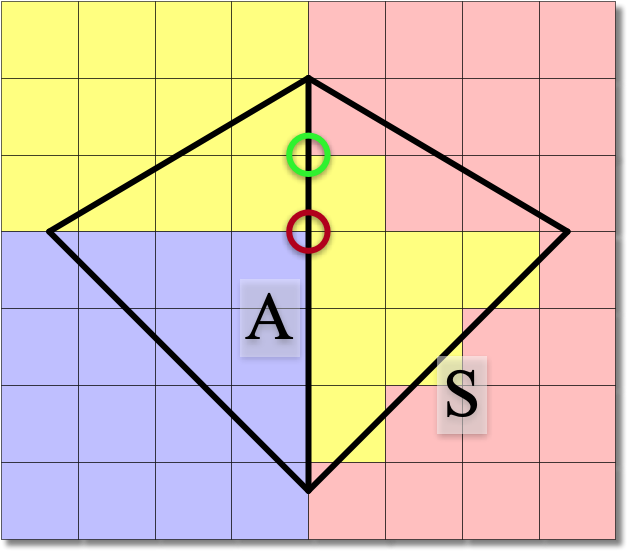
The second subtlety illustrated in Figure 2.8 is what happens when a
Segment lies along a diagonal pixel boundary, like the one
marked "S". Again, because OOF2 puts Segments on pixel
boundaries, this is a common occurence. If you were
traversing this Segment looking for transition points in order
to subdivide it (see Refine)
you would not want to consider any of the intersections to be
transition points — they are just artifacts of the
pixelization of the image. This Segment should be considered to
be entirely homogeneous, although whether it's yellow or red
depends on which side of the segment you're interested in.
OOF2 detects stairstepped pixel boundaries like this and
takes them into account when computing Segment homogeneity.
The components of a Skeleton — elements,
nodes,
and segments
— may be placed into named groups. These groups form a
convenient way to save and recover sets of selected objects.
Groups are created and manipulated by the Skeleton Selection
Task Page.
Skeleton boundaries define the places where
boundary
conditions will be applied when solving equations on a
Mesh. The Mesh inherits its boundaries from its Skeleton.
There is no way to create boundaries in a Mesh directly.
Boundaries may coincide with the perimeter of the Skeleton, but
there is no requirement that they do so.
Boundaries are created and manipulated by the Skeleton Boundaries task page.
Edge boundaries are composed of directed sets of conjoined
segments. Each
Skeleton automatically contains edge boundaries named
top, bottom,
left, and
right. Dirichlet,
Neumann,
and Floating
boundary conditions may be applied at edge boundaries.
Point boundaries consist of sets of nodes. Each
Skeleton automatically contains point boundaries named
topleft,
topright,
bottomleft, and
bottomright. Dirichlet,
Floating, and
Generalized
Force boundary conditions may be applied at point
boundaries.
|
|
 |
|
| 2.3. Materials |  |
2.5. Meshes and SubProblems |