
OOF2: The Manual
| 4.2. The Layer List | ||
|---|---|---|

|
Chapter 4. The Graphics Window |  |
The Layer List at the bottom of the Graphics Window contains one
line for each Layer in the window. The Layers are listed in
the opposite of the order in which they're drawn, so that the
layers drawn last are at the top of the
list. That is, Layers that are conceptually at the top of the
display, obscuring the Layers below them, are listed at the
top of the Layer List.
Figure 4.2 illustrates the components of
the Layer List. Each line corresponds to a single Layer, and
is made up of the following columns:
-
Show. A check button controlling whether or not the layer is actually drawn. If it's checked, the
Layeris drawn on the canvas. If it's not checked, theLayeris invisible. Toggling the button invokes the Hide and Show commands in the Layer menu. -
Freeze. When this check button is checked, the layer will not be automatically updated. Use this to display a
Meshat two different times, for example. Toggling the button invokes the Freeze and Unfreeze commands in the Layer menu. -
What. The class (
Image,Mesh, etc.) and name (in parentheses) of the object being displayed. -
How. How the object is being displayed. This is the name of the
Layer'sDisplayMethod. The amount of extra detail provided for theDisplayMethoddepends on the setting of the Long Layer Names entry in the OOF.Graphics_n.Settings menu.
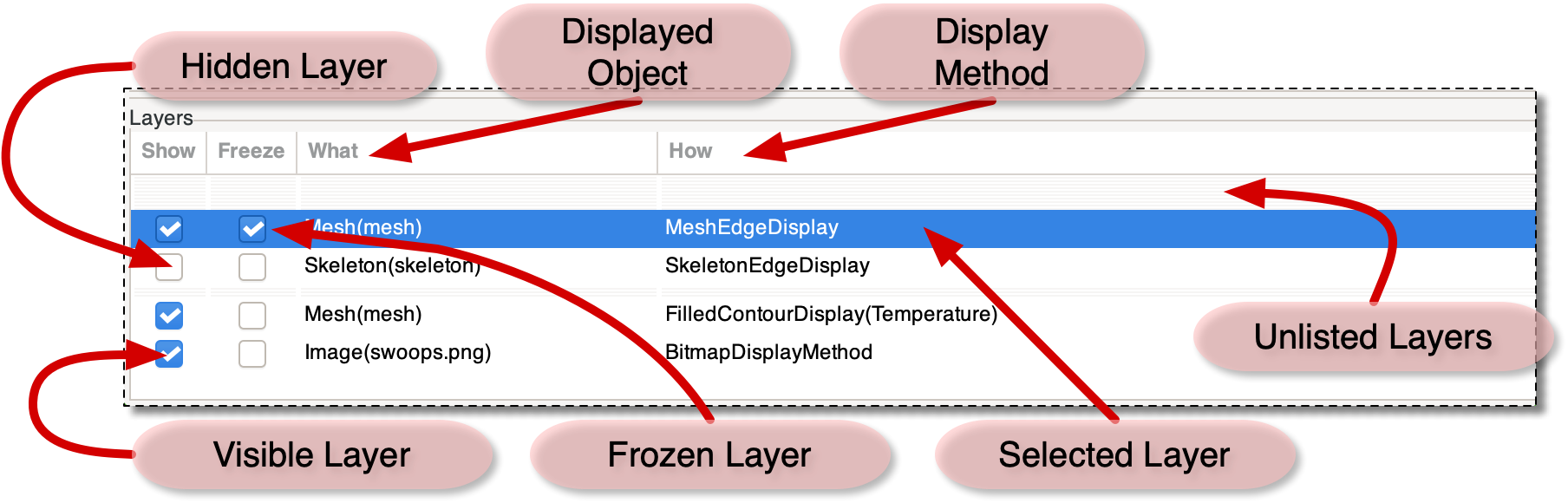
Clicking on an entry in the Layer List (but not on one of the
buttons in it) selects that Layer for further processing by
commands in the Graphics Window's Layer
menu. Control-clicking[7] on a selected Layer will
deselect it.
To rearrange the order of the Layers in the list, select a
layer and use the Raise
and Lower
menus in the Layer
menu. You can also right-click on a line in the Layer List and
use the pop-up menu, which is identical to the
Layer menu in the menu bar. The commands and
their keyboard shortcuts are:
In normal operation, the Layer List actually doesn't show all of
the Layers that are being displayed on the Canvas. This is
because there are a lot of auxiliary Layers, for showing
selections and other decorations, that would just clutter up the
list. These Layers are called unlisted
layers, and are indicated by thin nearly invisible horizontal
lines in the list. The List
All Layers command in the Settings
menu governs whether or not the auxiliary Layers are listed.
The auxiliary layers are (from top to bottom in their standard order):
-
SkeletonNodeSelectionDisplay— selectedNodes -
PinnedNodesDisplay— pinned nodes. -
MoveNodeDisplay—Nodesbeing moved manually. -
PixelInfoDisplay— the pixel being interrogated by the Pixel Info Toolbox. -
SkeletonSegmentSelectionDisplay— selectedSegments. -
SkeletonInfoDisplay— theNode,SegmentorElementbeing interrogated by the Skeleton Info Toolbox. -
SelectedSkeletonBoundaryDisplay— theSkeletonboundary selected in the Skeleton Boundaries page. -
MeshCrossSectionDisplay— cross sections for data output. -
SkeletonElementSelectionDisplay— selectedElements. -
A bitmap overlay for selected pixels.
-
A bitmap overlay for Active Areas.
|
|
 |
|
| Chapter 4. The Graphics Window |  |
4.3. The Contour Map |