
OOF2: The Manual
| Chapter 4. The Graphics Window | ||
|---|---|---|

|
Part I. Using OOF2 |  |
Table of Contents
The Graphics Window provides visual output from OOF2, and is the
home of all operations that require user interaction with
graphical representations of Microstructures, Images, Skeletons, and
Meshes.
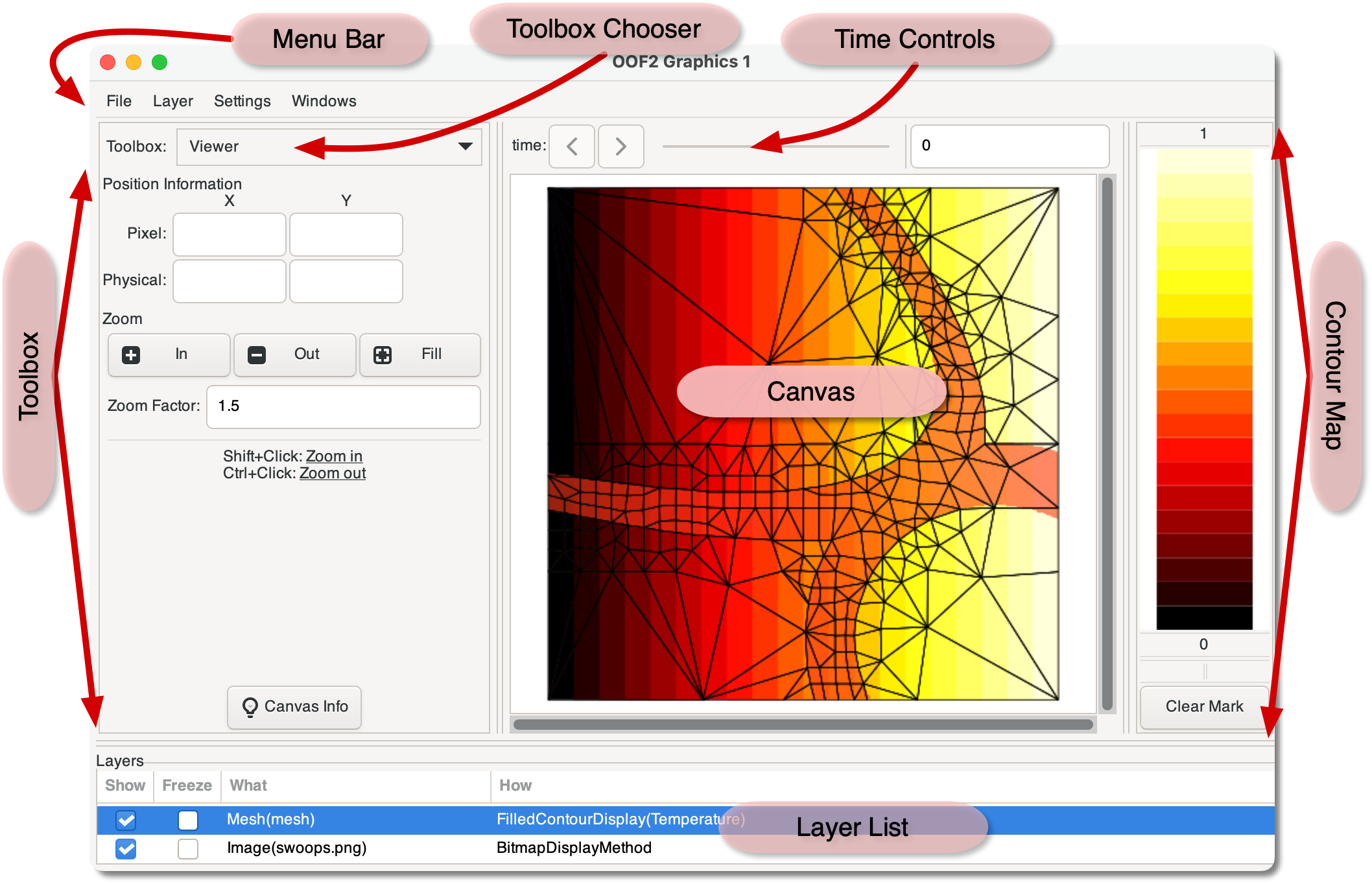
Figure 4.1 shows the structure of the Graphics Window. It consists of five main panes:
-
The Canvas is where OOF2 draws
Microstructures,Meshes, and everything else. -
The Time Controls display and change the time of the
Microstructuresdisplayed on the Canvas. -
The Toolbox to the left of the Canvas controls how OOF2 responds to mouse clicks on the Canvas. The Toolbox also displays information in response to mouse clicks. OOF2 contains many different Toolboxes. The Toolbox Chooser at the top of the Toolbox pane switches between them.
-
The Layer List at the bottom of the window lists the contents of the Canvas. It also provides a quick way of turning different parts of the display on and off.
-
The Contour Map to the right of the Canvas displays the colors used in contour plots.
The menu bar at the top of the window contains commands that adjust the behavior of the window, save the contents of the Canvas, and provide alternate ways of performing some basic tasks. The menu items are described at OOF.Graphics_n.File, OOF.Graphics_n.Layer, and OOF.Graphics_n.Settings.
The objects displayed in the Canvas are arranged in
Layers. Each Layer obscures the layers
below it, and is obscured by the Layer above it (although they
can be transparent too). Each Layer displays some aspect of a
single OOF2 object, either a Microstructure, Image, Skeleton, or
Mesh. Which objects are displayed automatically can be
controlled by the New
Layer Policy command in the graphics
window's Settings
menu.
The display also includes a number of auxiliary layers, which draw things
like the currently selected Elements and Nodes. These layers
are created automatically when a Graphics Window is opened, and
are listed in Section 4.2.
They can be modified, hidden, or even deleted like any other
Layer.
Each Layer is drawn on the Canvas by a DisplayMethod object. The
documentation for DisplayMethod lists all of the DisplayMethod subclasses, and
indicates which types of object each subclass can draw.
When new Layers are added to a Canvas, OOF2 attempts to
insert them so as to minimize the amount of useful information
that each Layer obscures in the Layers below it. Layers
containing sets of points are drawn above Layers containing
sets of lines, and Layers containing lines are drawn above
Layers containing filled polygons or bitmapped Images. This
ordering can be changed by explicitly moving Layers around in
the Layer
List.
New Layers are created by the New
item in the window's Layer
menu. See OOF.Graphics_n.Layer.New
for all the details.
When a new object, such as an Image or Skeleton is created,
OOF2 needs to know whether or not to create a new Layer to
display it in the graphics window. Previous versions of
OOF2 had a confusing policy governing which objects would be
displayed and when. To avoid confusion, the default policy is
now unambiguous and easy to explain:
![[Warning]](IMAGES/warning.png) |
Warning |
|---|---|
|
Nothing is displayed unless you request that it be displayed. |
You can set the policy to one of these values:
- Never is the default. New items are not displayed automatically. To add items to a graphics window, use the OOF.Graphics_n.Layer.New menu item.
-
Always is the opposite of
Never. New items are always displayed in all graphics
windows. Images will be displayed as bitmaps.
SkeletonsandMesheswill be displayed by their edges. This probably isn't very useful if you have a lot of objects. -
Single is the most like the earlier
behavior. Objects will be automatically displayed in an
existing graphics window but only if the window doesn't
already contain a similar object. Each window can
contain one
Image, oneSkeleton, and so forth.
The policy can be changed in two places. The menu item OOF.Settings.Graphics_Defaults.New_Layer_Policy in the main OOF2 window will change it for all new graphics windows, but won't affect windows that are already open. To change the behavior of an open graphics window, use OOF.Graphics_n.Settings.New_Layer_Policy in the window's menu bar.
|
|
 |
|
| 3.17. The Boundary Analysis Page |  |
4.2. The Layer List |