
OOF2: The Manual
| 3.15. The Solver Page | ||
|---|---|---|

|
Chapter 3. Task Pages |  |
The Solver Page is where it all comes together. After
-
Materialshave been assigned to aMicrostructure -
a
Skeletonhas been adapted to it -
a
Meshhas been created from theSkeleton -
FieldsandEquationshave been activated on theSubProblems - and boundary conditions have been assigned,
the Solver Page is used to find the solution to the equations.
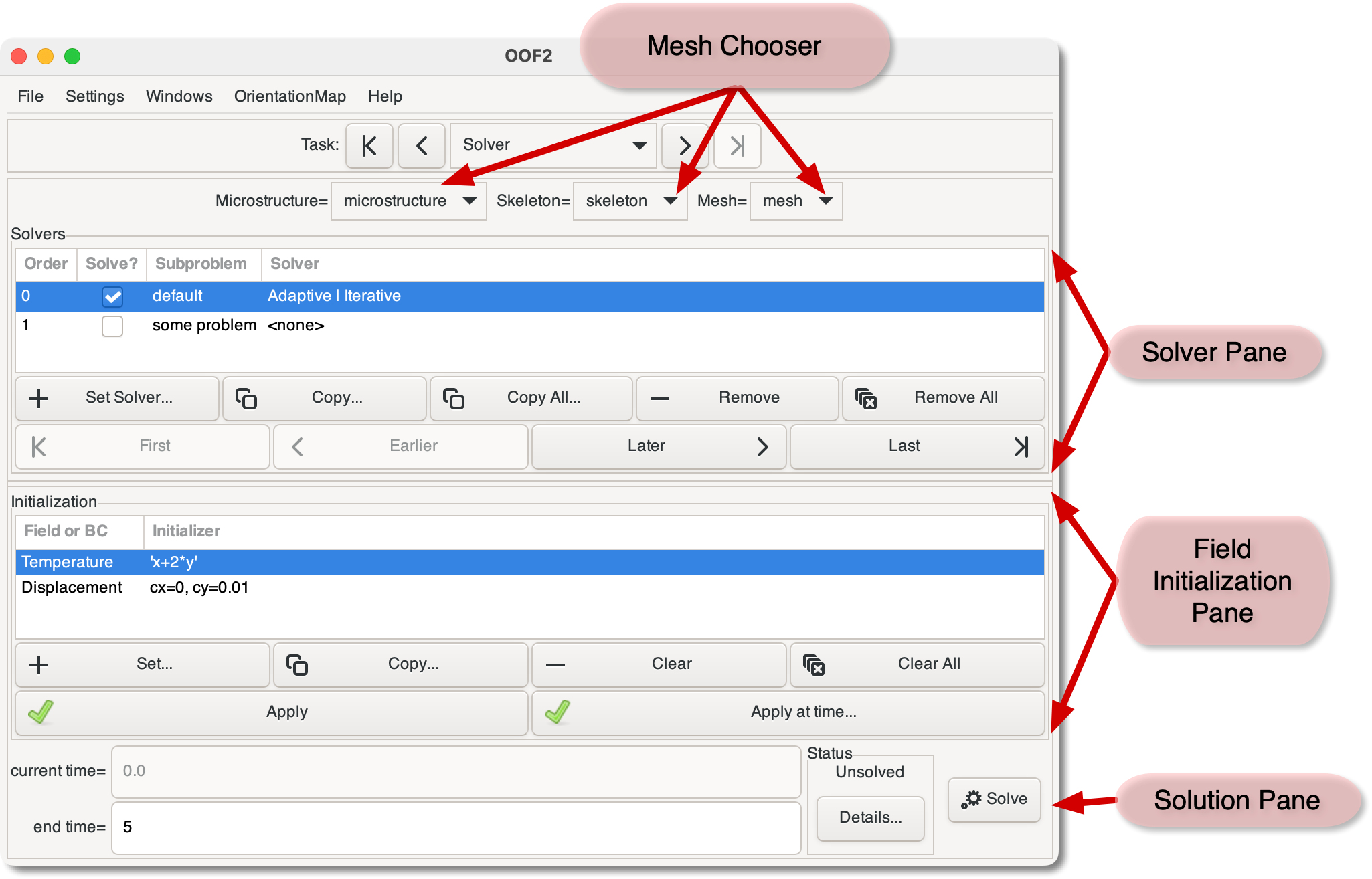
Figure 3.24 shows the layout of the Solver
Page. At the top is a Mesh Chooser for selecting the Mesh to be
solved. The Chooser has three parts, for selecting the Mesh and
the Skeleton and Microstructure in which it resides. Below the Mesh
Chooser is the Solver Pane,
where solution methods are assigned to SubProblems, and below
that is the Field Initialization
Pane, where initial conditions are defined and applied. At
the bottom of the page is the Solution Pane.
The Solver Pane sets the solution
technique that will be used for each SubProblem when
the button is pressed. It contains
a four column list with one row for each SubProblem defined in
the Mesh, and two rows of buttons that operate on the contents
of the list. Clicking on a row selects it. Double clicking on
a row is equivalent to selecting it and then pressing the button. The list comprises four
columns:
-
Order. When multiple
SubProblemsare being solved, they are addressed sequentially in the order given by the number in this column. The order can be changed by selecting aSubProblemand clicking one of the , , , or buttons. Solve? The checkbox in this column indicates whether the
SubProblemshould be solved or not. Clicking it invokes either the OOF.Subproblem.Enable_Solution or OOF.Subproblem.Disable_Solution commands. It's a quick way of temporarily disabling a subproblem without having to delete its solver.-
Subproblem. This is just the name of the
SubProblem. -
Solver. This is a short hand description of the solver that has been assigned to the
SubProblem. If no Solver is assigned, it will read<none>. To see the full details, select a line and click the button.
The buttons immediately below the SubProblem list operate on
the contents of the list. Most of them require one
SubProblem to be selected in the list.
Set. Assign a solver to a
SubProblemvia the OOF.Subproblem.Set_Solver command. The button brings up a dialog box displaying the currently assigned solver, or the default solver if no other solver has yet been assigned. The default is a static solver operating in basic mode, where OOF2 makes most of the detailed parameter choices automatically.Copy. Copy a solver from one
SubProblemto another, using the OOF.Subproblem.Copy_Solver command. The targetSubProblemmay be in a differentMesh.Copy All. Copy all solvers from this
Meshto anotherMesh, using OOF.Mesh.Copy_All_Solvers. Solvers will be copied only for thoseSubProblemsthat have identical names in the twoMeshes.Remove. Remove the solver from the selected
SubProblem, using OOF.Subproblem.Remove_Solver. TheSubProblemwill not be solved until a new solver is set.Remove All. Remove the solvers from all
SubProblems, making theMeshunsolvable until new solvers are assigned. See OOF.Mesh.Remove_All_Solvers.First, Earlier, Later, Last. These buttons change the order of the list, by moving the selected
SubProblemup ( or ) or down ( and ). All of the buttons invoke the OOF.Mesh.ReorderSubproblems command.
The Initialization Pane is in charge of assigning initial
values to the Fields and floating boundary
conditions that are defined on the Mesh. As explained
in Section 2.5.8,
initialization is a two step process: first an initializer is
assigned to a Field or boundary condition, and then all the
initializers are applied.
The Initialization pane contains a list with two columns: the
names of the Fields (or boundary conditions) and their
initializers. Items without initializers are marked with
“---”. Selecting an item in
the list and clicking the button
brings up a dialog box for setting the initializers.
Double-clicking on an item has the same effect.
When solving static problems, it's not necessary to initialize
Fields that are active, since
values will be assigned to them by the solver. However, the
iterative solvers will converge faster if the initial values of
the Fields are close to the actual solution. Fields and
floating boundary conditions that are being used in time
dependent problems should always be initialized.
Note that changing a SubProblem's solver can affect which
items can be initialized. If the Equations include terms,
such as mass
density in the force balance equation,
that contain second time derivatives, and
if the solvers are not static, then the first time derivative of
the relevant Fields and boundary conditions must be
initialized as well. The time derivative Fields have a
_t suffix in the list. For some reason, the
first time derivative of a boundary condition is set
differently, via an additional parameter in the
dialog.
In Figure 3.24,
Temperature's initializer has been set to a
function, x+2*y, and the initializers for
the two components of the displacement have been set to
constants, 0.0 and
0.01.
The buttons below the list operate on the initializers in the
Mesh.
-
Set. This button brings up a dialog box in which an initializer can be defined for the currently selected item. Clicking invokes the OOF.Mesh.Set_Field_Initializer or OOF.Mesh.Boundary_Conditions.Set_BC_Initializer command, depending on whether a
Fieldor a floating boundary condition is selected in the list. -
Copy. Copy all initializers from the current
Mesh(as set in the Mesh Chooser) to anotherMesh(selected in a dialog box), using OOF.Mesh.Copy_Field_Initializers. -
Clear. Remove the initializer from the selected item, invoking OOF.Mesh.Clear_Field_Initializer or OOF.Mesh.Boundary_Conditions.Clear_BC_Initializer.
-
Clear All. Remove the initializers from all items, invoking OOF.Mesh.Clear_Field_Initializers.
Apply. This button invokes OOF.Mesh.Apply_Field_Initializers to apply all the
Fieldinitializers that have been defined in theMesh. It does not change theMesh's time. If the initializers are time dependent, they are evaluated at theMesh's current time.-
Apply at Time. This button invokes OOF.Mesh.Apply_Field_Initializers_at_Time, which sets the values of the
Fieldsand theMesh's time, which is provided by a dialog box. If any of the initializers are time dependent, they are evaluated at the given time.
The bottom part of the Solver page contains
The current time cannot be
edited. It can only be changed by re-initializing the Mesh
using the button, or by
solving a time-dependent problem.
The end time can be changed by typing a new value in the box. If only static solvers are being used, the end time can be omitted. In that case, it's assumed to be equal to the current time.
Pressing the button in the Status box displays additional status information in the Message Window.
The button calls OOF.Mesh.Solve to compute a solution. After
completing a time dependent solution, the end time is
automatically incremented by the length of the time evolution,
and the changes to a
button. This allows the
solution to be extended by simply pressing the button again.
However, if the Fields are reinitialized or the problem
definition is changed in any way, the
button reverts to being a
button.
|
|
 |
|
| 3.14. The Scheduled Output Page |  |
3.16. The Analysis Page |