
OOF2: The Manual
| 3.6. The Materials Page | ||
|---|---|---|

|
Chapter 3. Task Pages |  |
The Materials Page is where Materials are built and assigned to
pixels in a Microstructure. It is the only OOF2 page (other than the
Introduction Page) that does not begin with a Chooser for
selecting a Microstructure, Skeleton, or Mesh. This is because
Materials exist independenly of Microstructures, allowing them to be
easily shared among different Microstructures.
The Materials Page consists of two panes, as shown in Figure 3.8. The Property Pane is for
setting the parameters for Properties. The Material Pane creates
and manipulates Materials and assigns them to pixels in a
Microstructure.
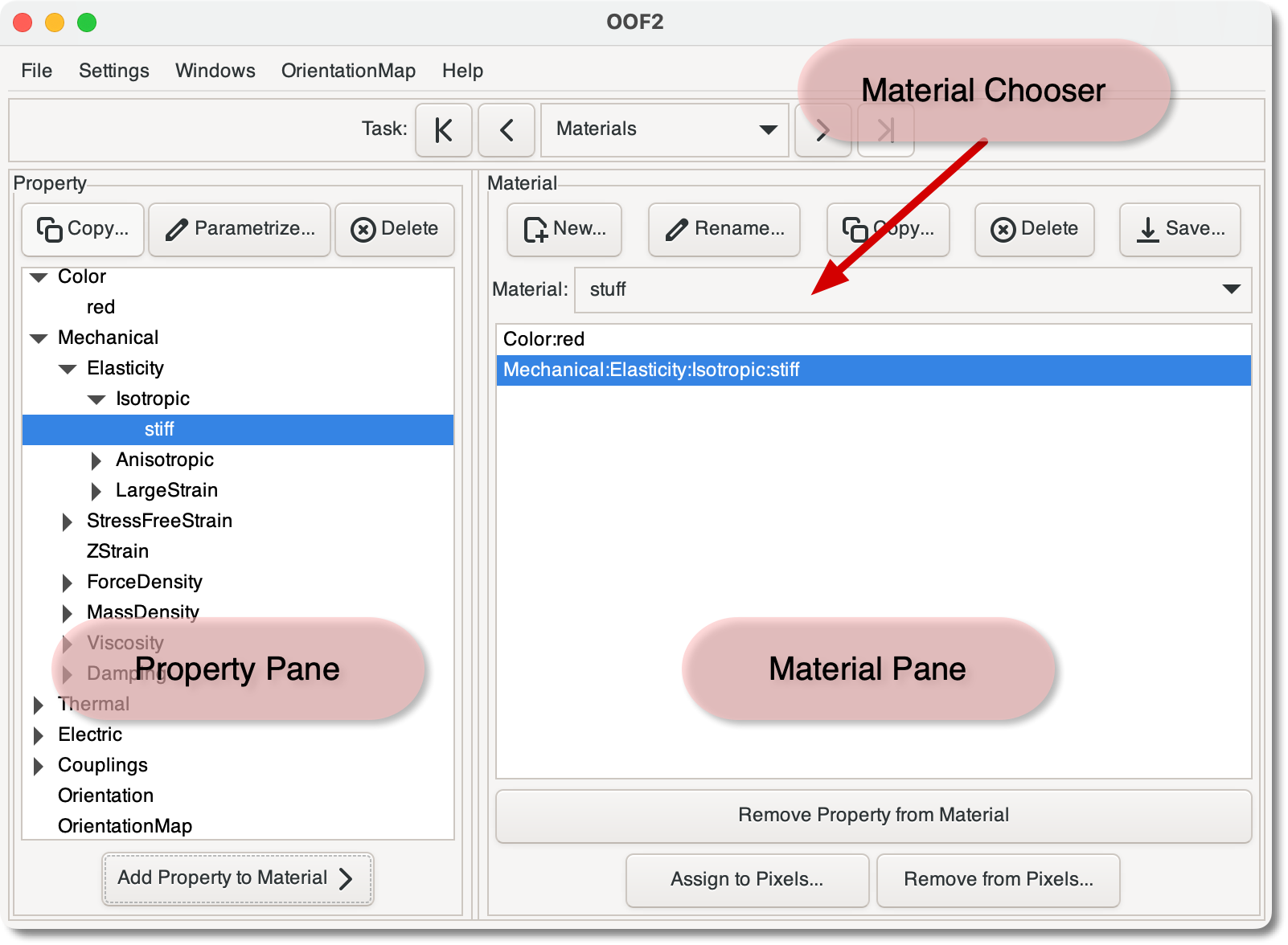
Most of the Property Pane is occupied by a hierarchical list of
Properties. This includes the predefined
unnamed Properties, and the user-defined
named Properties. In Figure 3.8 the highlighted Property
named “stiff” is a named isotropic elasticity
Property. It appears in the hierarchy below its unnamed
parent, Isotropic, which appears below its
parent, Elasticity, which is below the top level category,
Mechanical. Clicking on a Property in the list selects it for
further operations. Double-clicking a Property is the same as
single-clicking it and pressing the
button. Names in the list that correspond to hierarchy levels
but not to Properties (such as “Elasticity” or
“Anisotropic”) cannot be selected.
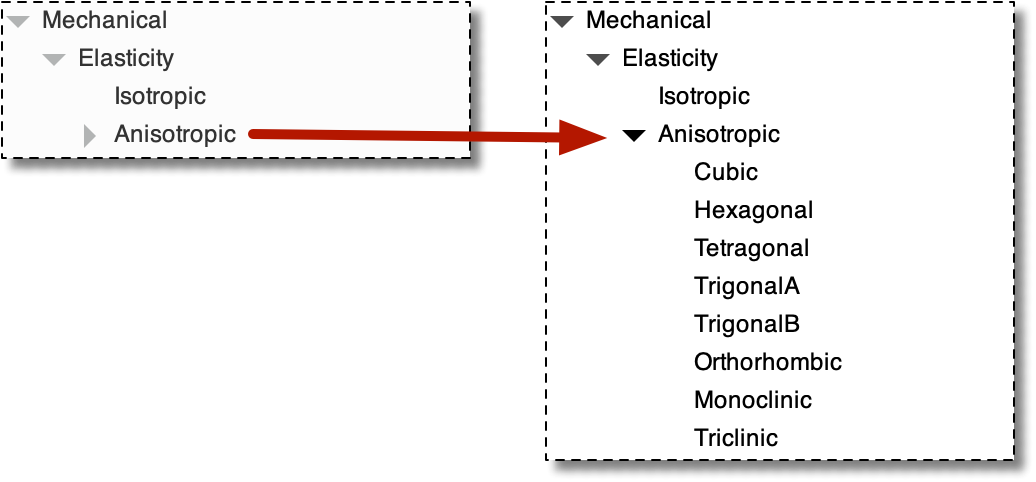
Clicking on the triangles to the left of the property names collapses and expands levels of the hierarchy. Figure 3.9 shows two views of the same section of the list. The anisotropic elastic property hierarchy is collapsed on the left and expanded on the right.
The three buttons above the Property List make changes to the list.
-
The button creates a named copy of the
Propertycurrently selected in the list. The currently selectedPropertycan be either named or unnamed. The button brings up a dialog box for naming the copiedProperty.Note that one
Propertycan be assigned to more than oneMaterial, and that editing aPropertyafter assigning it to aMaterialchanges it in all theMaterialsto which it's been assigned. If you want twoPropertiesof the same kind to have different parameters, you must make a copy. -
The button brings up a dialog box for setting the parameters of the currently selected
Property. Property parametrization dialogs are discussed in below. The parameters are assigned to thePropertywhen the button is pressed in the dialog box. -
The button deletes the selected
Property. It can only be applied to namedProperties. The predefined unnamedPropertiescannot be deleted.
Below the Property list is the button, which adds the
currently selected Property to the Material that is
currently selected in the Material Pane. One
Property can be added to more than one Material.
Clicking the
button or double-clicking on a Property in the Property List
brings up a dialog box for setting the parameters of the chosen
Property. Property dialogs have a couple of notable
features.
-
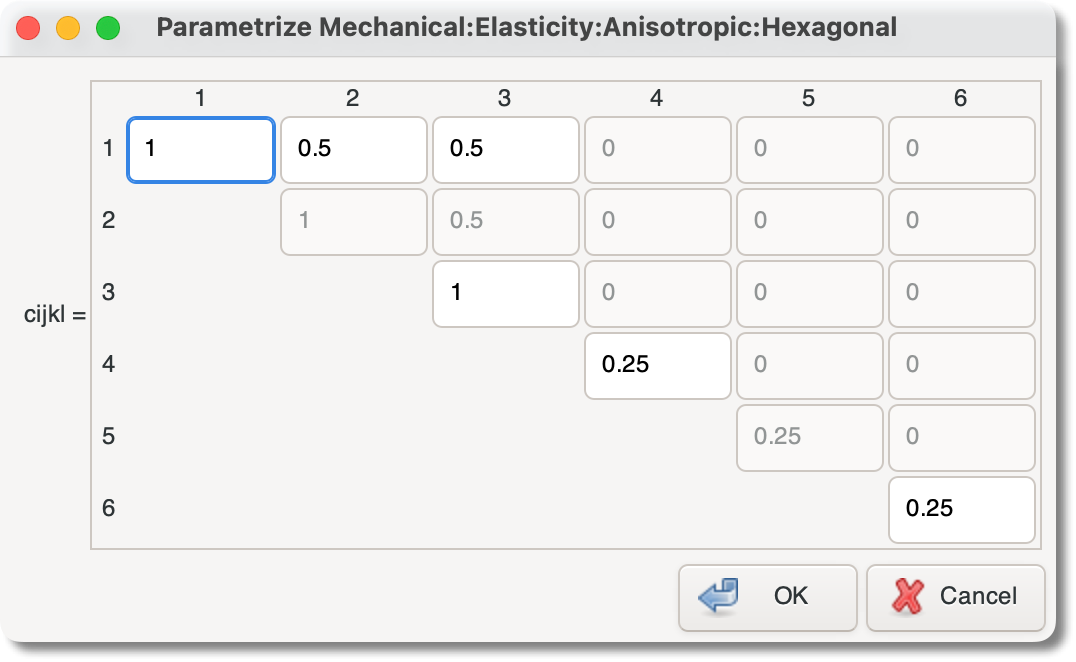
Many properties contain a number of related parameters. Only the independent ones can be set, but it can be convenient to see all of them. For example, Figure 3.10 shows the dialog box for the hexagonal elasticity property, whose parameter is a HexagonalRank4TensorCij object. The dialog box has entries for each of the components of the tensor. Some of the entries are grayed out, meaning that they cannot be set. Some of these (such as C14) are always zero for this
Property, and some (such as C22) are constrained to be equal to another entry (C11, in this case). Changing the value of C11 will also change the value of C22. Hexagonal rank 4 tensors have only 5 independent entries, but the dialog box contains 6 active entry fields. This is because there is a non-trivial relationship between values (in this case, C66=(C11-C12)/2). Changing the value of any one of the related entries will change the value of the others so that the constraint is always satisfied. -
Sometimes there can be more than one way to specify a
Property. For example, isotropic elasticity can be specified in terms of the components of the elastic modulus tensor, or by giving the bulk and shear moduli, or in Lamé coefficients. The dialog boxes contain a pull-down menu for selecting the preferred representation for such parameters. Figure 3.11 illustrates this for the ColorProperty. OtherPropertiesthat have multiple representations include isotropic elasticity, cubic elasticity, and orientation.Figure 3.11. The Color Property Dialog Box
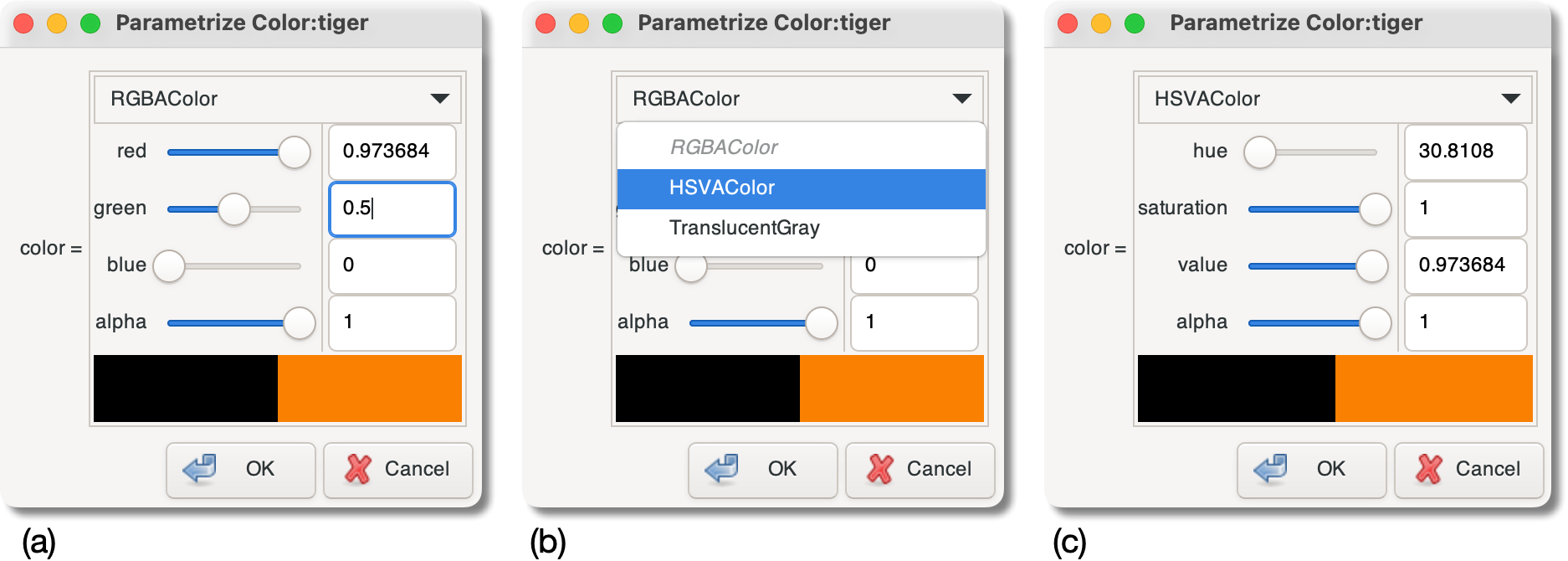
Three views of the Color Property dialog box, showing how it can convert parametrizations.
(a) The menu at the top, labelled RGBAColor, indicates that the color is being specified in the
RGBAColorrepresentation. The black rectangle shows the previous value of the color. The orange rectangle is the current value.(b) Switching to a different representation with the menu.
(c) The color hasn't changed, but the sliders for setting it now use the
HSVAColorrepresentation.
The Material Pane is where Properties constructed in the
Property
Pane are assembled into Materials. Materials in
OOF2 are simply lists of Properties. The Material Pane
consists of three regions (see Figure 3.8): a set of buttons at the
top, a Material Chooser and a list of Properties in the
middle, and another set of buttons at the bottom.
The Material Chooser is used to select one of the existing
Materials. The Properties contained in the selected
Material are listed below the Chooser. Clicking on a
Property in the list selects it, and also selects it in the
Property List in the Property Pane.
The buttons at the top of the Material Pane manipulate
Materials:
-
The button creates a new
Material. It brings up a dialog box asking for a name for theMaterial. After aMaterialis created, it will be automatically selected in the Material Chooser. -
The button renames the
Materialcurrently selected in the Material Chooser. -
The button makes a copy of the currently selected
Material. -
The button deletes the
Materialcurrently selected in the Material Chooser. It does not delete thePropertiesthat were in theMaterial— they still exist in the Property Pane and can be used in anotherMaterial. -
The button saves the currently selected
Materialand itsPropertiesin a file.
The three buttons at the bottom of the Material Pane also act
on the selected Material:
-
The removes the
Propertyselected in the Material Pane's Property list from the currentMaterial. It does not remove thePropertyfrom the Property Pane. -
The button assigns the currently selected
Materialto pixels in aMicrostructure. It brings up the dialog box shown in Figure 3.12.Figure 3.12. Assigning Materials to Pixels
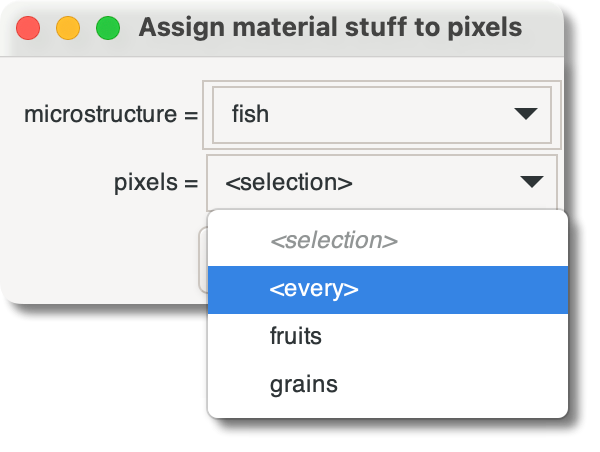
The
Materialnamed “stuff” is being assigned to all pixels in theMicrostructurenamed “fish”. The pull-down menu marked pixels allows theMaterialto be assigned to the selected pixels, to all the pixels, or to pixels in a pixel group (in this case, either “fruits” or “grains”). -
The button brings up a dialog box for removing the assigned
Materialfrom specified pixels in aMicrostructure. The dialog box specifies the pixels andMicrostructurein pull-down menus like those in Figure 3.12. TheMaterialassignment is removed whether or not the pixels'Materialis the same as the Material Pane's currently selectedMaterial.
|
|
 |
|
| 3.5. The Active Area Page |  |
3.7. The Skeleton Page |