
OOF2: The Manual
| 3.14. The Scheduled Output Page | ||
|---|---|---|

|
Chapter 3. Task Pages |  |
The Scheduled Output page determines what additional actions
OOF2 will perform while computing a time dependent solution.
The possible actions are described by the ScheduledOutput class, and include
- Updating the Graphics Window.
- Computing anything computable on the Analysis or Boundary Analysis pages.
-
Saving the current state of the
Meshin a file. - Computing time step statistics.
These operations are generically called “Outputs” in this manual page, because that's the name of the first column of the list. They should really be called “Output Operations” or “Output Actions”.
![[Note]](IMAGES/note.png) |
Note |
|---|---|
|
If the solution is not time dependent, or if no output is required between the solution's start time and end time, the Scheduled Output page can be ignored. |
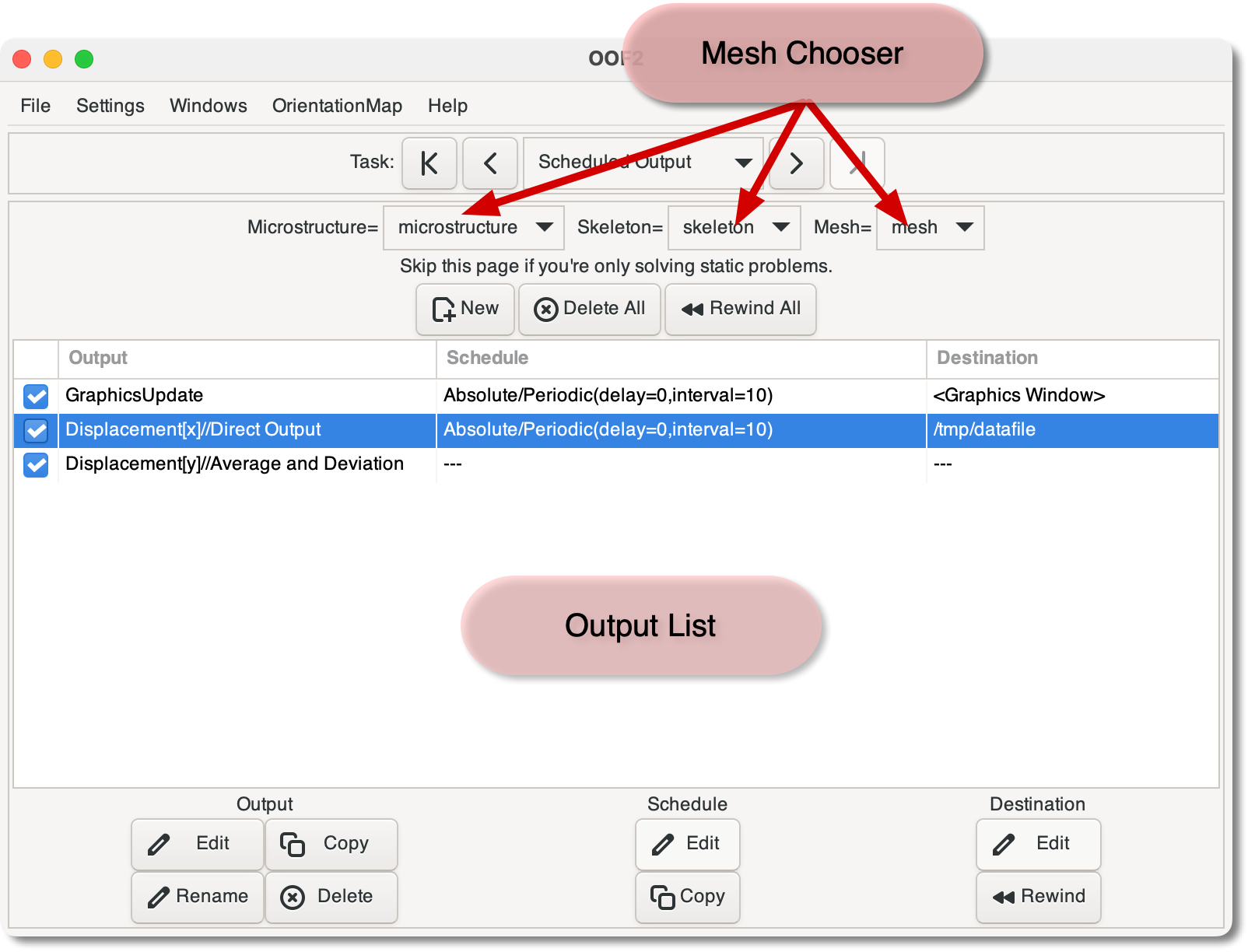
The page contains the usual widgets at the top for selecting a
Mesh. Below the Mesh selector are three buttons:
-
The button brings up the dialog box for creating a new scheduled Output. The new Output will appear in the Output List below the buttons. It will need to have its Schedule and Destination assigned before it's useful, though. In Figure 3.23, the third Output has no Schedule or Destination yet.
In the dialog, if the Output's
nameis<automatic>, OOF2 will generate an unwieldy name that summarizes the Output's parameters, as seen in Figure 3.23. If you provide a name that is already in use, OOF2 will append<x>to it, wherexis an integer. -
The button rewinds all of the Outputs in the list. If the Outputs go to files, the files will be overwritten the next time a solution is computed.
The Output list is divided into four columns:
-
Checkboxes that enable and disable a scheduled Output.
-
The Output column, which lists the quantities being computed or actions being performed.
-
The Schedule column, which indicates when and how often the quantity is to be computed or action is to be performed.
-
The Destination column, which indicates where the results go.
After creating an Output with the , select it by clicking and use the buttons at the bottoms of the columns to modify it, or to add or edit a Schedule or Destination. Double clicking an item in the list is the same as selecting it and clicking the button below that column.
The Output column lists the actions that will be performed.
-
The button brings up a dialog for changing the currently selected item in the Output lists. Every aspect of the item can be changed, except for its name.
-
The button duplicates the currently selected Output. The duplicate can be created in the same or a different
Mesh. The duplicate's name can be specified or generated automatically. -
The button changes the name of the currently selected Output.
All Outputs in a Mesh must have unique names. The
and
operations will create a unique name if necessary by appending
<x> to the given name, for some
integer x.
The Schedule column determines when and how
often the corresponding entry in the Output
column is to be computed. If an Output hasn't been scheduled,
the Schedule column contains
“---”.
-
The button brings up a dialog box for defining or editing the
ScheduleTypeandSchedulefor the Output. TheScheduleTypeindicates whether the times in theScheduleare to be interpreted as absolute times or are relative to the solution's starting time. A third option,Conditionalis not fully implemented. -
The button copies the selected Schedule to another Output, which might be in another
Mesh.
It is not possible to delete the Schedule from an Output. An Output with no Schedule is unusable. If you do not want to use an Output, delete the whole Output or disable it with the check box in the first column of the list.
An Output's OutputDestination
determines how its results are handled. Like the
Schedule column, the
Destination column contains
“---” if a Destination
hasn't been set yet.
A header is prepended to output to text-based Destinations, such
as OutputStream
(i.e. a file) and MessageWindowStream (the Message Window). The
header contains comments describing the output and the contents
of each column, if appropriate. The characters demarcating the
comments
and dividing the columns
can be selected in the OOF.Settings.Output_Formatting menu in the
main OOF2 menubar. This allows you to tailor the file format
to the needs of your plotting program, for example.
Outputs can share their OutputDestination's. If the
destination is a file, lines from each Output will be
interleaved. To avoid confusion, the data headers will be
repeated each time the file switches from one Output to another.
-
The button opens a dialog box for defining or editing an
OutputDestinationfor the selected Output. Not all types ofOutputDestinationare appropriate for all types of Output. Only the appropriate ones will be shown in the dialog box, and if there is only one choice (for example, forGraphicsUpdate) the button will be disabled. -
The button is only useful if the selected
OutputDestinationis a file (i.e, anOutputStreamorDataFileOutput). If more than one solution sends its results to the sameOutputDestination, the results of the later solutions are appended to the results of the first. Rewinding the Destination file will cause the earlier results to be discarded the next time that the file is written.
|
|
 |
|
| 3.13. The Boundary Conditions Page |  |
3.15. The Solver Page |