
OOF2: The Manual
| OOF.Graphics_n.Toolbox.Select_Element.Rectangle | ||
|---|---|---|

|
6.2. Menus |  |
Name
OOF.Graphics_n.Toolbox.Select_Element.Rectangle — Drag to select elements within a rectangle.
Synopsis
OOF.Graphics_n.Toolbox.Select_Element.Rectangle(skeleton, points, shift, ctrl)
Details
- Parent Menu: OOF.Graphics_n.Toolbox.Select_Element
-
Callback: function
SkelSelectToolbox.selectCBin moduleooflib.common.IO.genericselecttoolbox -
Parameters:
Description
RectangleElementSelect is a selection
method that selects Elements in response to a mouse click in
the graphics window when the
Skeleton
Selection toolbox is active and is set to
“Element” mode. It selects all Elements lying within a
rectangle swept out by dragging the mouse, as shown in Figure 6.24. Click the mouse on one corner of
the rectangle and drag to the opposite corner. Only those Elements
that are completely within the rectangle will be selected.
skeleton is the Skeleton from which the Elements are
to be selected.
points is a list of
Point objects. The first and last points
in the list are diagonally opposite corners of the rectangle. Any
other points in the list will be ignored.
The shift and ctrl
parameters govern how the current selection
(i.e, the set of Elements defined by
this operation) is merged with the previous selection (the Elements
already selected) to form a new selection, as shown in Table 6.1. They indicate whether
(True) or not (False) the
shift and control keys were depressed during the mouse click that
initiated this command.
Figure 6.24. Selecting a Rectangular Set of Elements
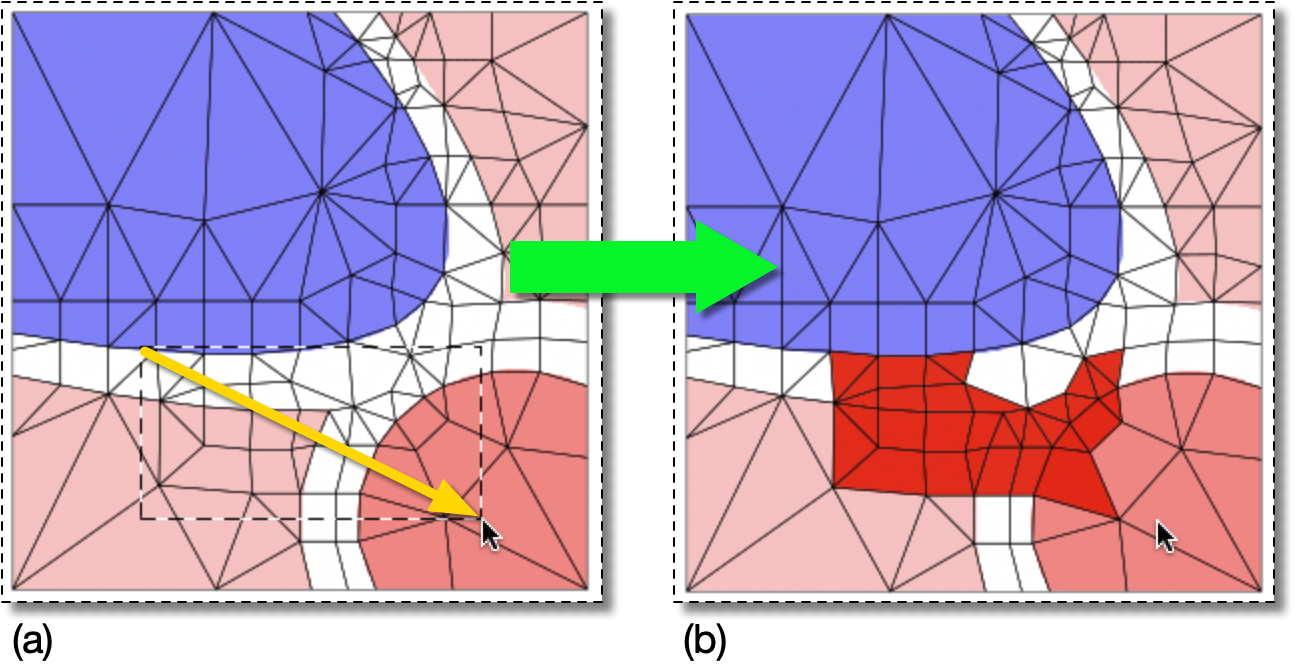
(a) Click and drag as shown by the yellow arrow to define a rectangle.
(b) The selected Elements are shown in red. Only those
completely within the rectangle are selected.
|
|
 |
|
| OOF.Graphics_n.Toolbox.Select_Element.Invert |  |
OOF.Graphics_n.Toolbox.Select_Element.Redo |