
OOF2: The Manual
| OOF.Graphics_n.Settings.Antialias | ||
|---|---|---|

|
6.2. Menus |  |
Name
OOF.Graphics_n.Settings.Antialias — Use antialiased rendering.
Synopsis
OOF.Graphics_n.Settings.Antialias(boolean)
Details
- Parent Menu: OOF.Graphics_n.Settings
-
Callback: function
GfxWindow.toggleAntialiasin moduleooflib.common.IO.GUI.gfxwindow -
Parameters:
boolean-
A boolean value,
0(false) or1(true). This is not a keyword parameter. In scripts, just enter '0' or '1', not 'boolean=1'.
Description
Aliasing is what happens when you try to draw
small objects on a computer screen where the size of the pixels is
comparable to the size of the objects. The Skeleton edges shown in
the top left image in
Figure 6.9 are one pixel wide, and the
diagonals are not smoothly drawn. In the top right image the edges
are 0.5 pixels wide, and half of them aren't visible at all.
Antialiasing is a method for removing aliasing by making pixels bleed color into their neighbors. The lower left image in Figure 6.9 contains antialiased edges of width 1.0, and they are much smoother than the aliased edges above them. Even edges narrower than a single pixel can be drawn clearly, show in the bottom left image.
Figure 6.9. Antialiasing Lines
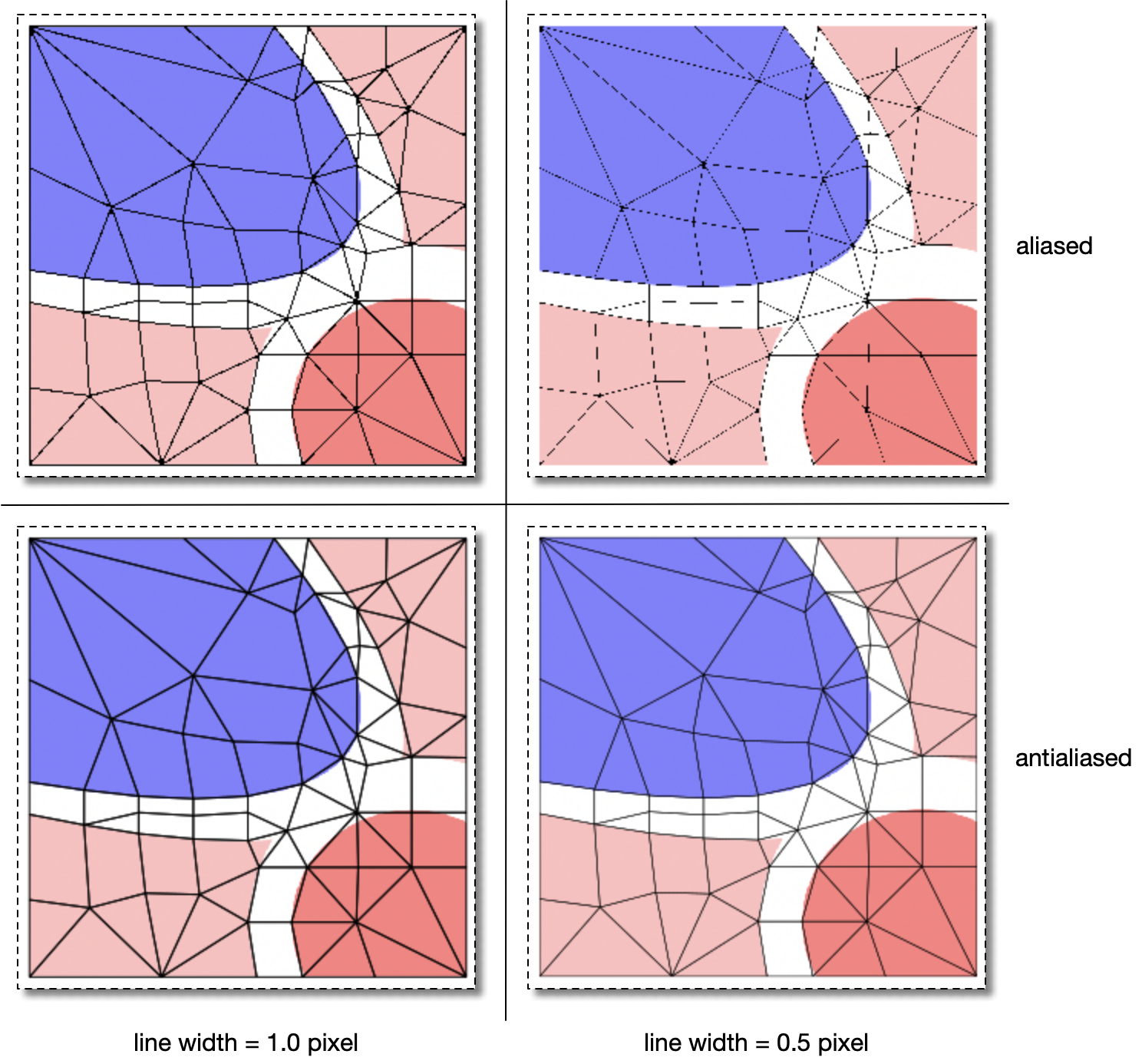
The effects of aliasing. The antialiased images in bottom row are smoother than the aliased images in the top row.
Antialiasing can make line drawings look better, but it can cause
problems when displaying filled polygons
(e.g, SkeletonMaterialDisplay or FilledContourDisplay). When the
antialiasing algorithm attempts to smooth diagonal edges of adjacent
polygons, it can leave some space in between, as shown in Figure 6.10.
Figure 6.10. Antialiasing Filled Polygons
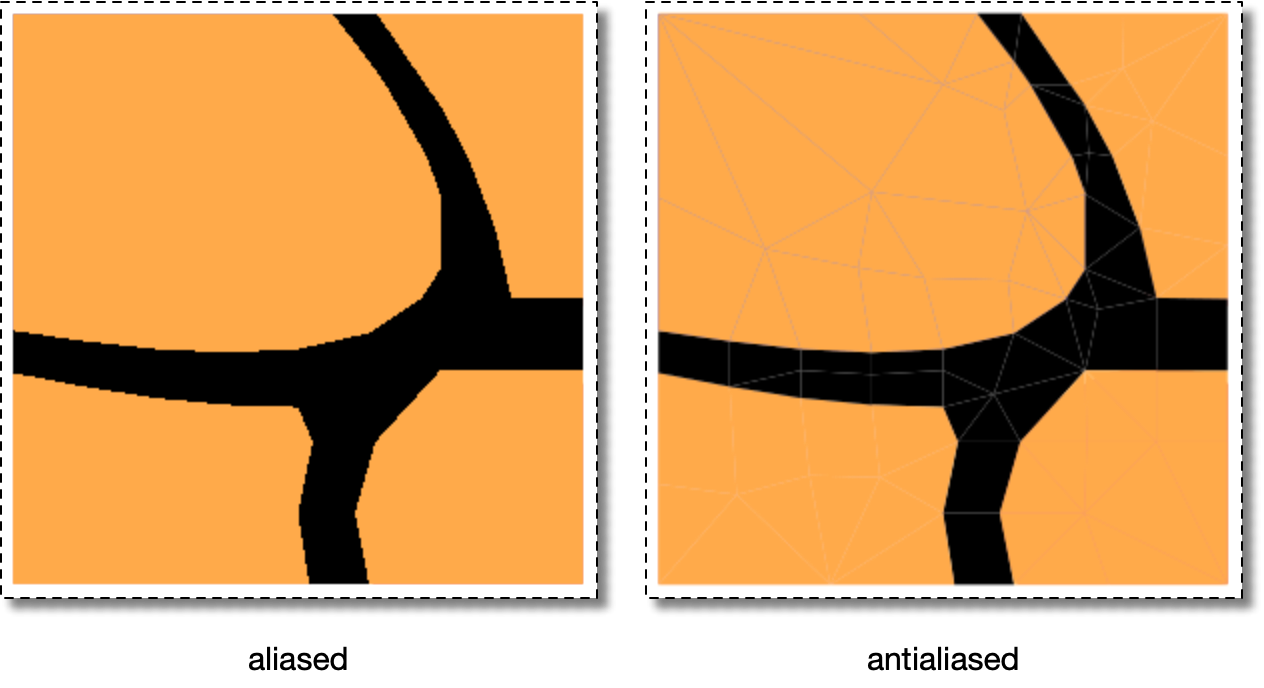
Screenshots of aliased and antialiased filled polygons (using
SkeletonMaterialDisplay).
Boundaries between the polygons are faintly visible in the
antialiased image.
|
|
 |
|
| OOF.Graphics_n.Settings.Zoom.Zoom_Factor |  |
OOF.Graphics_n.Settings.Aspect_Ratio |