
OOF2: The Manual
| OOF.PixelGroup.AutoGroup | ||
|---|---|---|

|
6.2. Menus |  |
Name
OOF.PixelGroup.AutoGroup — Put all pixels into pixel groups, sorted by color or orientation.
Synopsis
OOF.PixelGroup.AutoGroup(grouper, delta, gamma, minsize, contiguous, name_template, clear)
Details
- Parent Menu: OOF.PixelGroup
-
Callback: function
autoPixelGroupin moduleooflib.common.IO.pixelgroupmenu -
Parameters:
grouper- Which pixel values to use, and how to compute the difference between them. Type: An object of the
PixelGrouperclass. delta- Pixels within this many standard deviations of a group's mean will be added to the group. Type: A real number.
gamma- Groups within this many standard deviations of each other's means will be merged. Type: A real number.
minsize- Don't create groups or isolated parts of groups with fewer than this many pixels. Instead, assign pixels to the nearest large group. Set minsize=0 to skip this step. Type: Integer.
contiguous- Create only contiguous groups. Similar pixels that aren't connected to one another will be put into separate groups. Type: Boolean: True or False.
name_template- Name for the new pixel groups. '%n' will be replaced by an integer. Type: A character string.
clear- Clear pre-existing groups before adding pixels to them. This will NOT clear groups to which no pixels are being added. Type: Boolean: True or False.
Description
Automatically assign every active
pixel in the Microstructure to a PixelGroup according to the criterion
given by grouper. This command is invoked by the
button in the Pixel Group
pane in the Microstructure Page.
Unlike OOF.Image.AutoGroup, this command is designed to handle noisy images (but not too noisy), and it can group pixels according to EBSD data as well as color. It can create either contiguous groups (each group containing a connected set of pixels) or discontiguous groups (a single group possibly comprising disjoint regions).
AutoGroup works well on images with regions of
constant color (or orientation) with a small amount of added noise,
when you want the final PixelGroups to be insensitive to the
noise. It also works well on antialiased images, where the
transition from one region of constant color to another has been
smoothed out over the span of a few pixels, but the interpolated
colors in the boundary should not be put into their own
PixelGroups.
Pixels are compared to one another using the operation given by the
grouper parameter, and put into groups if they
are within a set number of standard deviations of the group's mean,
which is also determined by the grouper. The
grouper has a parameter sigma0
which is the minimum standard deviation of a group[26]. (Any deviation
smaller than sigma0 will be set equal to
sigma0.) Using a small sigma0
will tend to create many groups, each containing a small range of
pixel values. Using a large sigma0 will tend to
create fewer, larger groups, with a wide range of pixel values in
each.
There are four steps in the process:
-
Preliminary groups are created from statistically similar pixels. AutoGroup keeps track of the mean and standard deviation of the groups that it's creating. It selects a pixel at random and sees if that pixel's value is within
deltastandard deviations of the mean of any existing pixel group (where “existing” means any of the groups already created during this call to AutoGroup). If it is, then the pixel is added to the group and the group's mean and deviation are recomputed. If the pixel value is close to the mean of more than one group, the closest one is used (i.e, the one whose mean is the fewest standard deviations from the pixel value). After recomputing the mean, the group is compared to all other groups, and if its mean is withingammadeviations of another group's, the two groups are merged. Again, if more than one merge is possible, the closest one is used. The mean and deviation of the merged group are recomputed and checked against the remaining groups recursively until no more merges are found.If the pixel being examined is not within
deltastandard deviations of any group, a new group is created for it, and a standard deviation ofsigma0is imposed. If at any time adding a pixel brings the standard deviation (or one if its components, if it's a vector) belowsigma0, the deviation is reset tosigma0. -
After putting pixels into preliminary groups, each group is split into contiguous pieces, where each piece is a single connected set of pixels. Any sets containing fewer than
minsizepixels are absorbed into the neighboring groups. If there are multiple groups neighboring a pixel, the pixel is added to the group with the nearest mean, measured in terms of the group's standard deviation. -
If the parameter
contiguousisFalse, the groups that were split in the previous step are reassembled, so the finalPixelGroupsmay be discontiguous. -
Finally, the groups are sorted by size, largest to smallest, and each group is given a name, determined by the
name_templateparameter. A%nin the name will be replaced by an integer, starting from 0. Ifname_templatedoes not contain%n, one will be appended to it.
An example
Figure 6.48(a) shows a 500×502 pixel
Image created by a drawing program that uses antialiasing. Only
four colors were explicitly used to make the image, but due to
antialiasing and other mysterious processes, the image contains
many more colors. Grouping naively using OOF.Image.AutoGroup produces 1009 separate
pixel groups, many containing a single pixel. The green pixels in
Figure 6.48(b) and (c) are one of the
larger groups, containing 42247 pixels.
Figure 6.48. Poorly Autogrouping an Antialiased Image
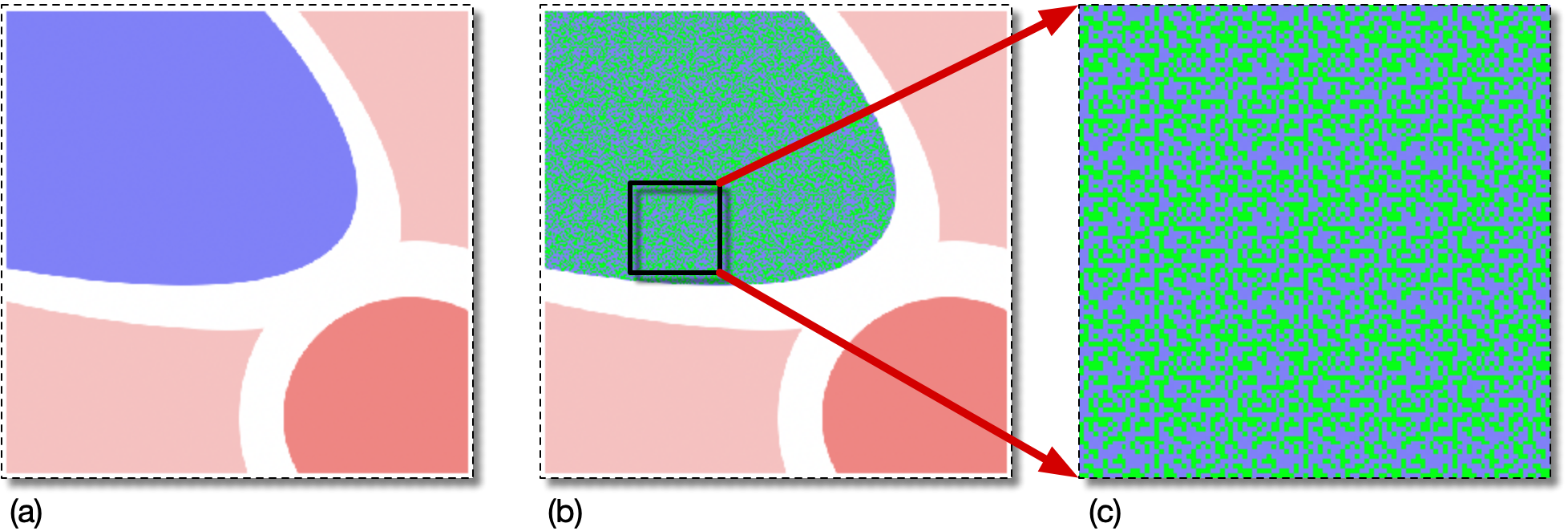
(a) An antialiased image nominally containing four colors, but actually containing many more.
(b) One of the pixel groups created by OOF.Image.AutoGroup is highlighted in green.
(c) A close-up view of part of the pixel group.
On the other hand, when using the AutoGroup described here (i.e, in the OOF.PixelGroup menu, or the button on the Microstructure page[27]) the pixel colors don't have to match exactly within a group. Finding the best set of parameters for AutoGroup can require a bit of experimentation. For example, using the command
      OOF.PixelGroup.AutoGroup(
         grouper=ColorGrouper(image='swoops.png:swoops.png',sigma0=0.2),
         delta=2,
         gamma=2,
         minsize=0,
         contiguous=True,
         name_template='group_%n', clear=True)
with a large sigma0, widely different colors
are grouped together. As shown in Figure 6.49(a) the pink and white pixels have
been put into a single group. sigma0 is too
large.
Making sigma0 smaller (0.02)
      OOF.PixelGroup.AutoGroup(
         grouper=ColorGrouper(image='swoops.png:swoops.png',sigma0=0.02),
         delta=2,
         gamma=2,
         minsize=0,
         contiguous=True,
         name_template='group_%n', clear=True)
produces a single large group for each contiguous colored region in the image, but leaves over 1000 small groups along the edges of the regions, as shown in Figure 6.49(b) and (c).
Setting minsize=100 finally produces just 5 groups (4
if contiguous=False).
Each of the 5 colored regions in Figure 6.48(a) forms its own group.
Figure 6.49. Better Autogrouping of an Antialiased Image
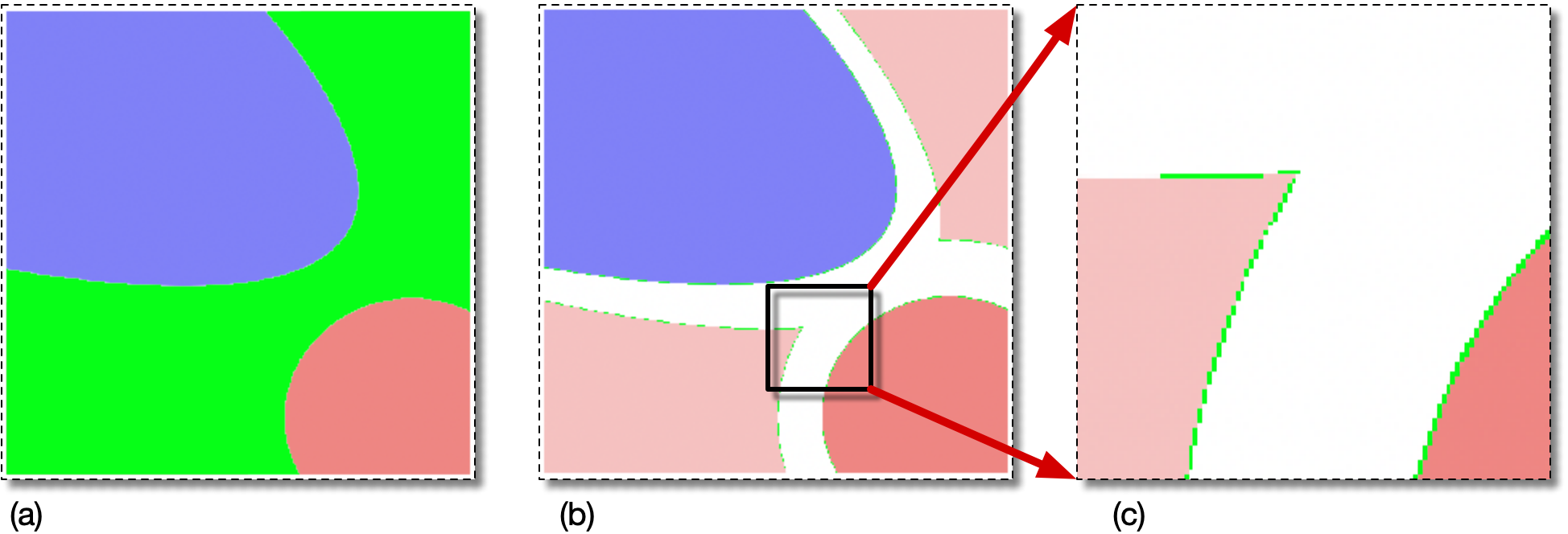
(a) A pixel group (in green) created with a large value of
sigma0. Two different colors from Figure 6.48(a) are grouped together.
(b) After grouping with a small sigma0
the large colored regions are grouped correctly, except for
pixels on their boundaries. The pixels shown in green are
incorrectly placed into small groups because their colors
differ too much from the means of the neighboring large
groups.
(c) A detail of (b).
|
|
 |
|
| OOF.PixelGroup.AddSelection |  |
OOF.PixelGroup.Clear |