
OOF2: The Manual
| OOF.Graphics_n.Toolbox.Pixel_Select.Brush | ||
|---|---|---|

|
6.2. Menus |  |
Name
OOF.Graphics_n.Toolbox.Pixel_Select.Brush — Drag to select multiple pixels with a brush.
Synopsis
OOF.Graphics_n.Toolbox.Pixel_Select.Brush(source, style, points, shift, ctrl)
Details
- Parent Menu: OOF.Graphics_n.Toolbox.Pixel_Select
-
Callback: function
PixelSelectToolbox.selectCBin moduleooflib.common.IO.genericselecttoolbox -
Parameters:
source- Microstructure or Image. Type: The path to an OOF2 object.
style- Type: An object of the
BrushStyleclass. points- Type: A list of
Pointobjects. shift- True for addition. Type: Boolean: True or False.
ctrl- True for toggle. Type: Boolean: True or False.
Description
Select a contiguous set of pixels by sweeping the mouse over them.
The mouse acts like a paintbrush with a size and shape given by the
style parameter.
The source parameter is the path to a Microstructure or Image.
If it's an Image, the selection is made in the Microstructure in which
the Image resides.
The points parameter is a Python list of Points in the
Microstructure. The selected pixels will be those that are under the brush
when the brush is centered on one of the specified
points or on any point on the line segments
joining them.
The shift and ctrl parameters
govern how the current selection
(i.e, the set of objects defined by
this operation) is merged with the previous selection (the objects
already selected) to form a new selection, as shown in Table 6.1. They indicate whether
(True) or not (False)
the shift and control keys were depressed during the mouse click
that initiated this command.
Figure 6.15. Selecting Pixels with the Brush
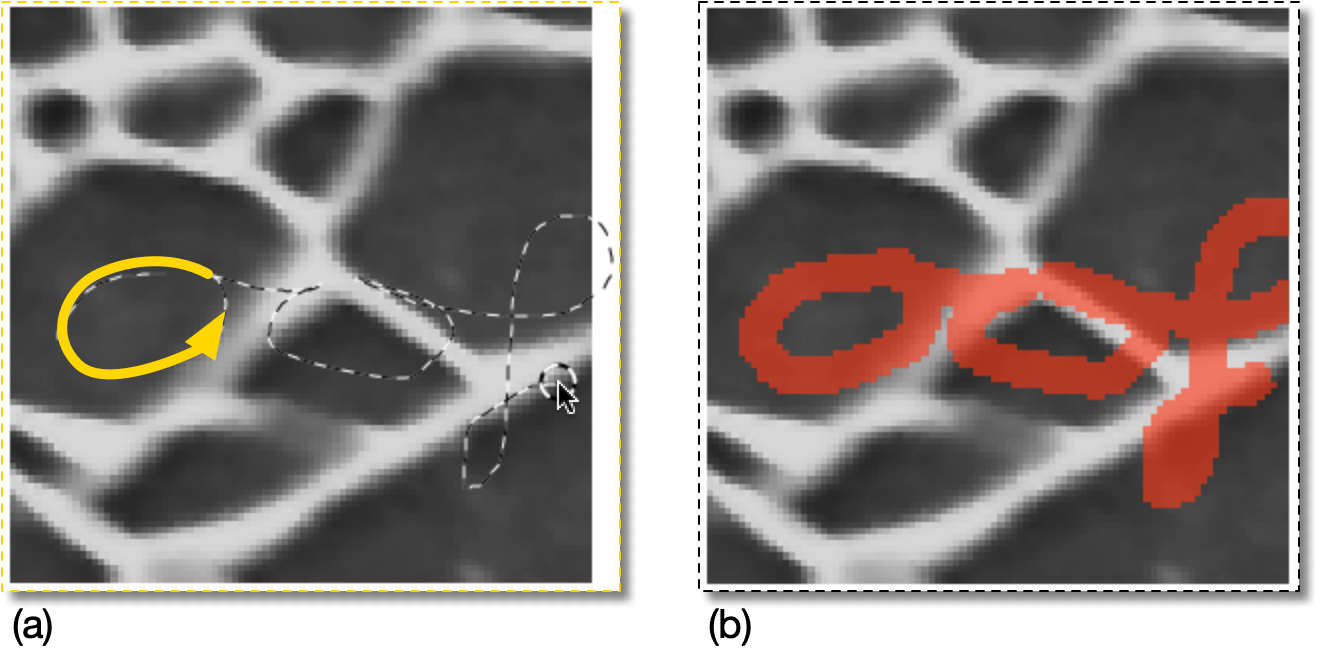
(a) Click and drag to select pixels, as partially illustrated
by the yellow curve. The brush shape is drawn around the
mouse cursor. In this example it's a GfxCircleBrush with
radius=3.0. The cursor's path is drawn as well.
(The Microstructure is 92×91, in physical units).
(b) The pixels selected in (a).
|
|
 |
|
| OOF.Graphics_n.Toolbox.Pixel_Info.Query |  |
OOF.Graphics_n.Toolbox.Pixel_Select.Burn |